
User Profile Variables and Velocity Features
Personalize your marketing communications with data from your users’ profiles in eSputnik. Optimize personalization with Velocity features
Using profile variables
The simplest and most widely used example of message personalization is to automatically replace the %FIRSTNAME% variable with the user's name.
Also, you can substitute any other data from the user profile in the same way:
%NICKNAME%%CITY%%PROMOCODE%%BONUSES%
You can see the list of these variables in the message editor (it includes standard contact fields and additional fields that you can create in your account).
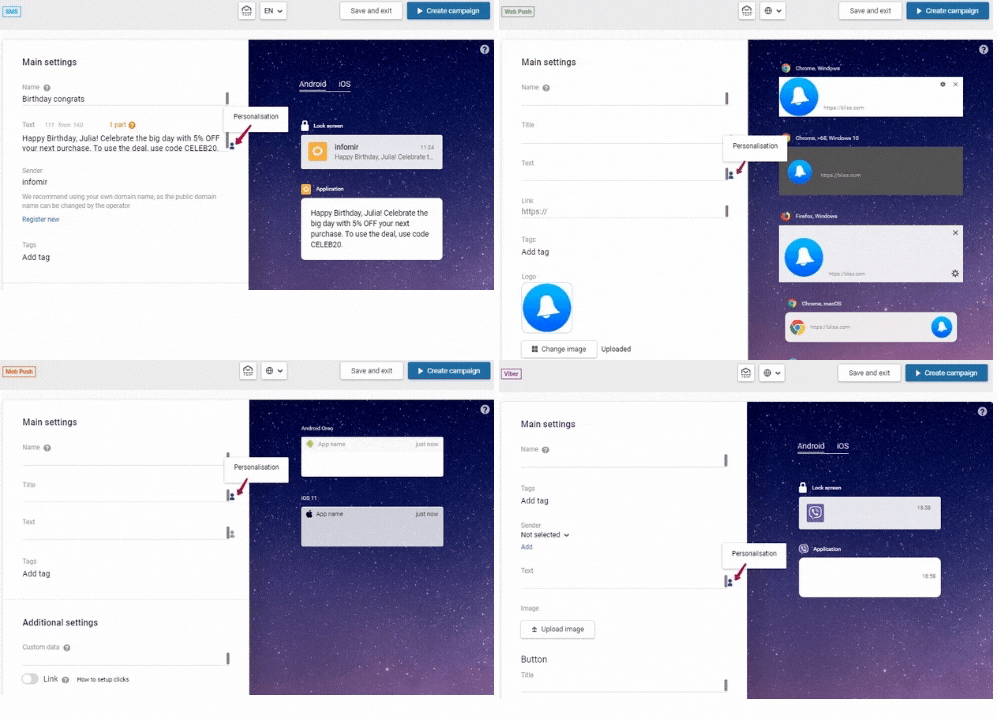
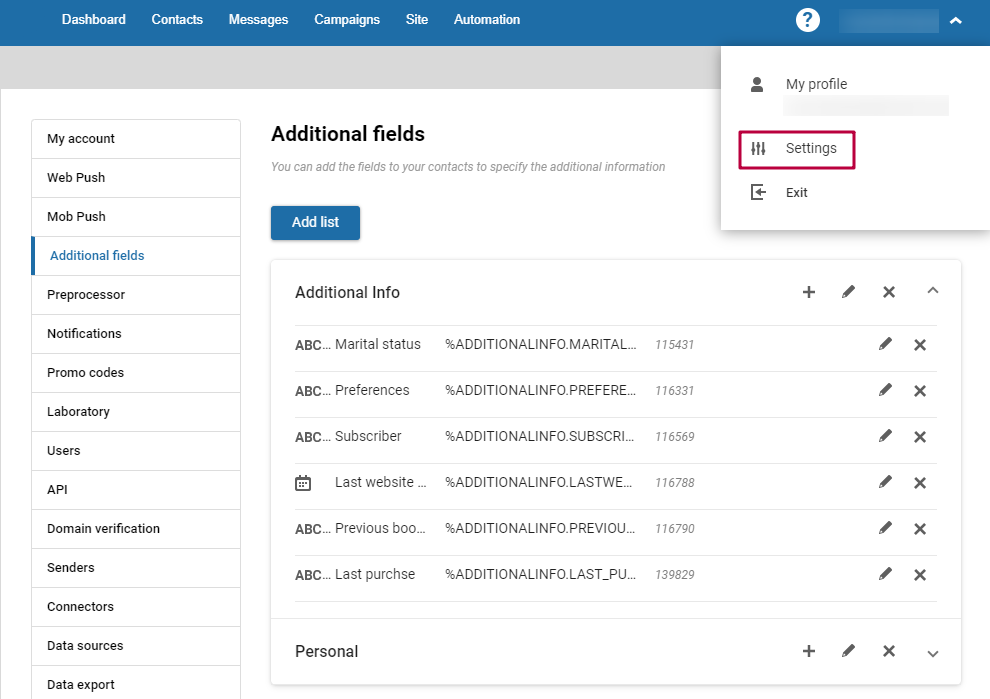
To see all user fields available in your account, go to your profile > Settings > Additional fields. Additional fields can contain any contact data you send to eSputnik through API.
More on using user profile variables >
Optimizing user profile variables usage with Velocity features
The use of user profile variables has some potential issues. For example, you may need to show different message blocks depending on users’ data. Or to hide certain blocks unless all data is available. To do this, use velocity features. Let’s see an example of using velocity with data from user profile.
Use case: personalizing message depending on location data
Task
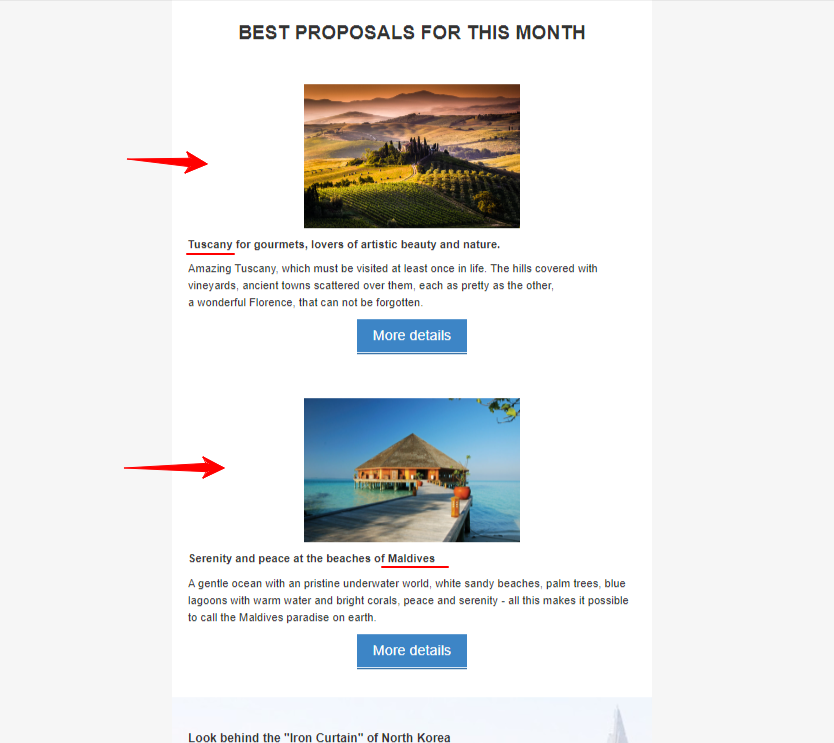
We have an additional data field in users’ profiles — PERSONAL.LOCATION. We need to show different email blocks depending on on data in this field:
- If
PERSONAL.LOCATION= Maldives — show block with description of this location and don’t show block with Tuscany description. - If
PERSONAL.LOCATION= Tuscany — show block with description of this location and don’t show block with Maldives description. - If
PERSONAL.LOCATION≠ Maldives or Tuscany — don't show any of these blocks.
Solution
- Click on the first structure in the email where you want to show dynamic content (Tuscany) and open the Code editor.
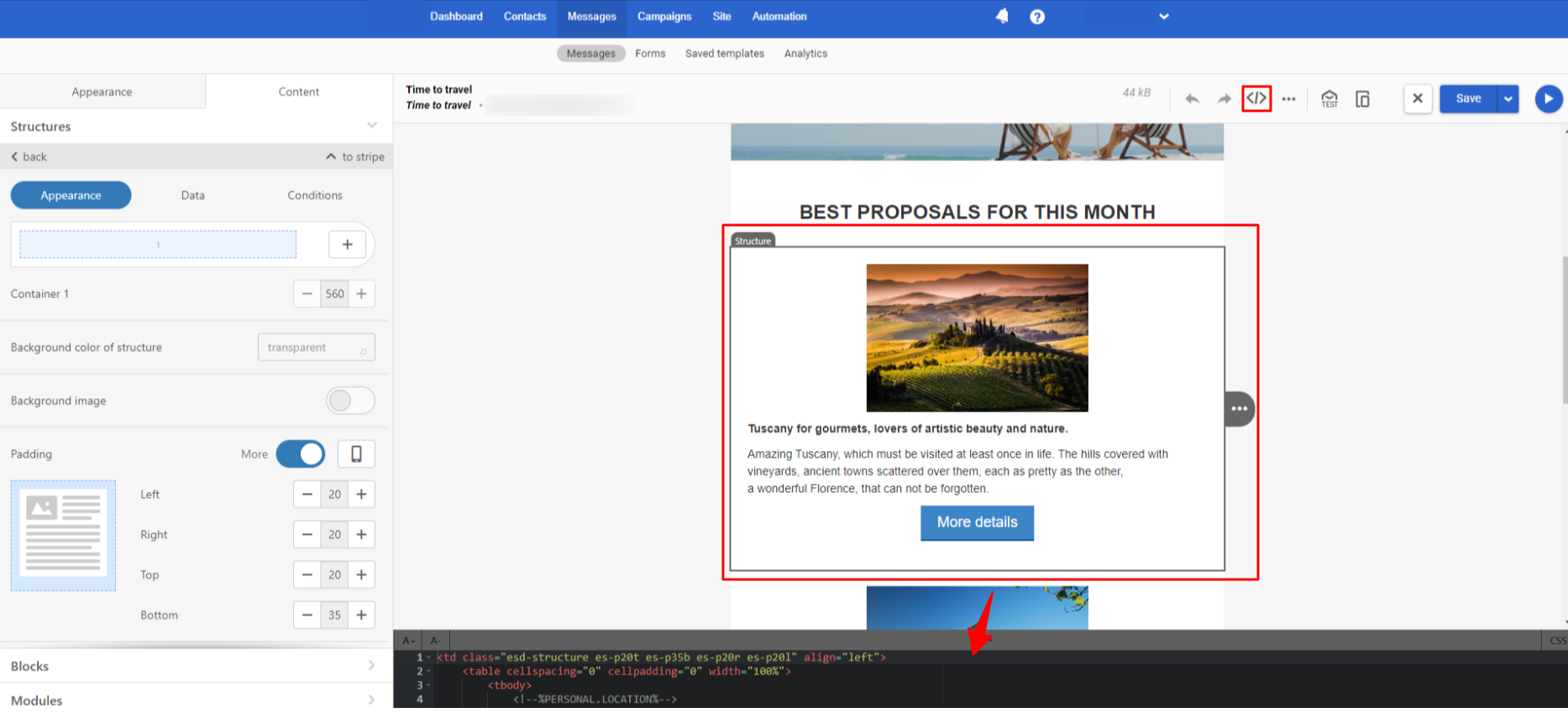
- Find the first
trtag in the selected email structure code. - Declare a personalization variable(s) that will be used in the email above
trtag. In our case this is
<!--%PERSONAL.LOCATION%-->- Add conditional statements that are responsible for displaying this structure to the structure code. Use the following statement format:
<!--#if($data.get('parameter name')=='value1')-->In our case it will be the following statement:
<!--#if($data.get('PERSONAL.LOCATION')=='Tuscany')-->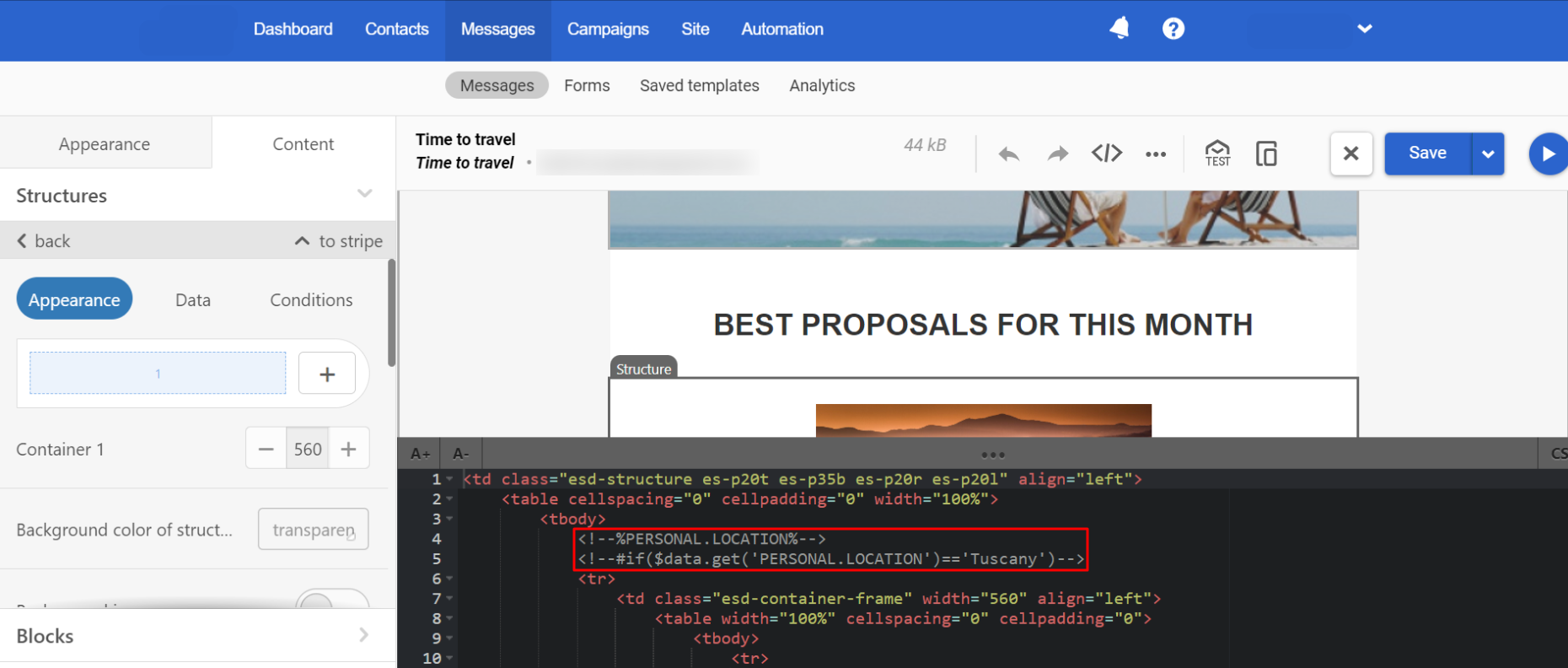
- Click on the second structure in the email where you want to show dynamic content (Maldives). The corresponding structure code will be opened in the Code editor.
- Find the first
trtag in the selected email structure code. - Add conditional statements that are responsible for displaying this structure to the structure code above
trtag. Use the following statement format:
<!--##elseif($data.get('parameter name')=='value2')-->In our case it will be the following statement:
<!--#elseif($data.get('PERSONAL.LOCATION')=='Maldives')-->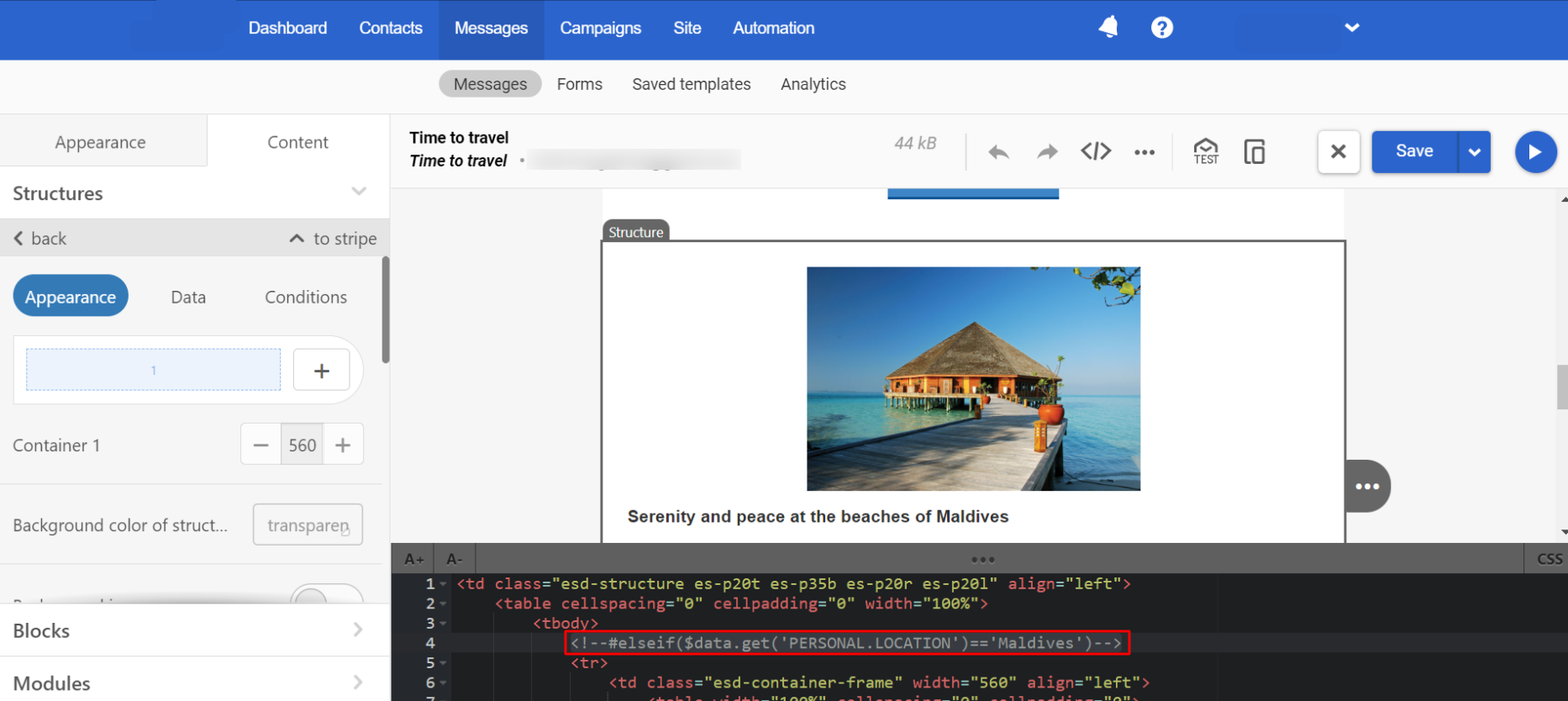
- Add statement after structure
/trclosing tag.
Results
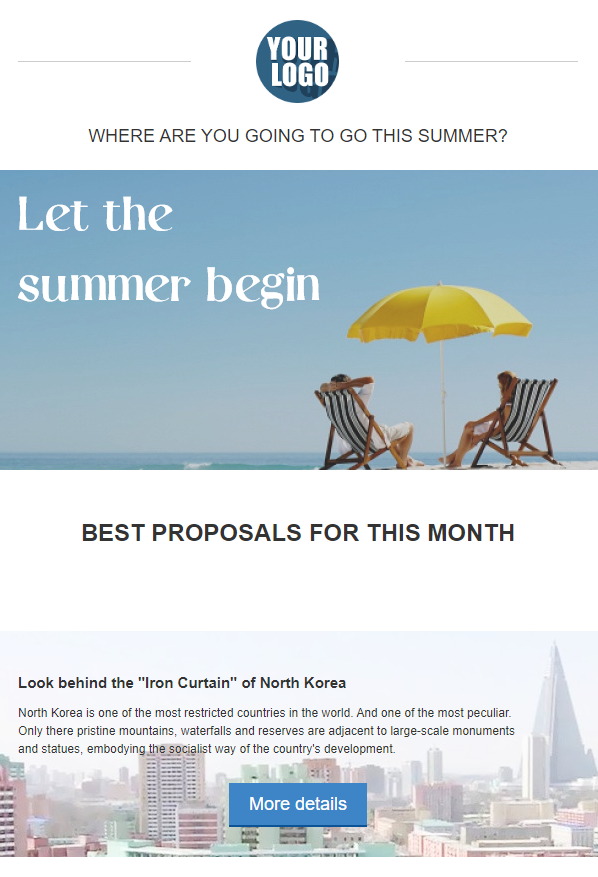
That’s how users with different PERSONAL.LOCATION parameters will see the message after sending:
1) User withTuscany parameter:
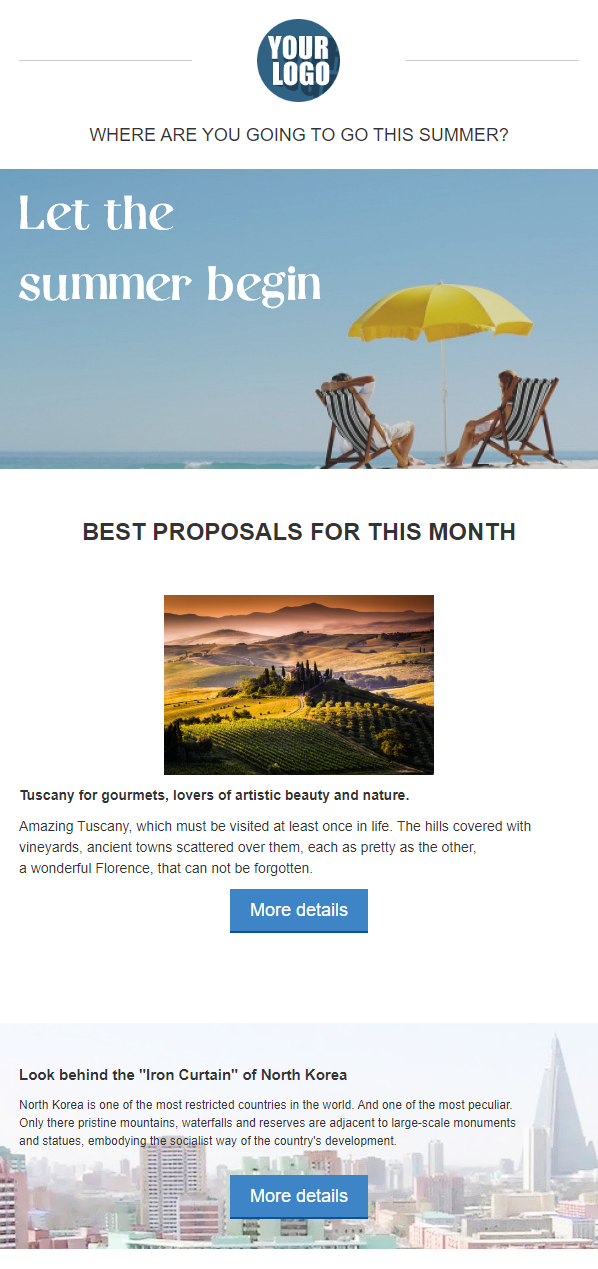
2) User withMaldives parameter:
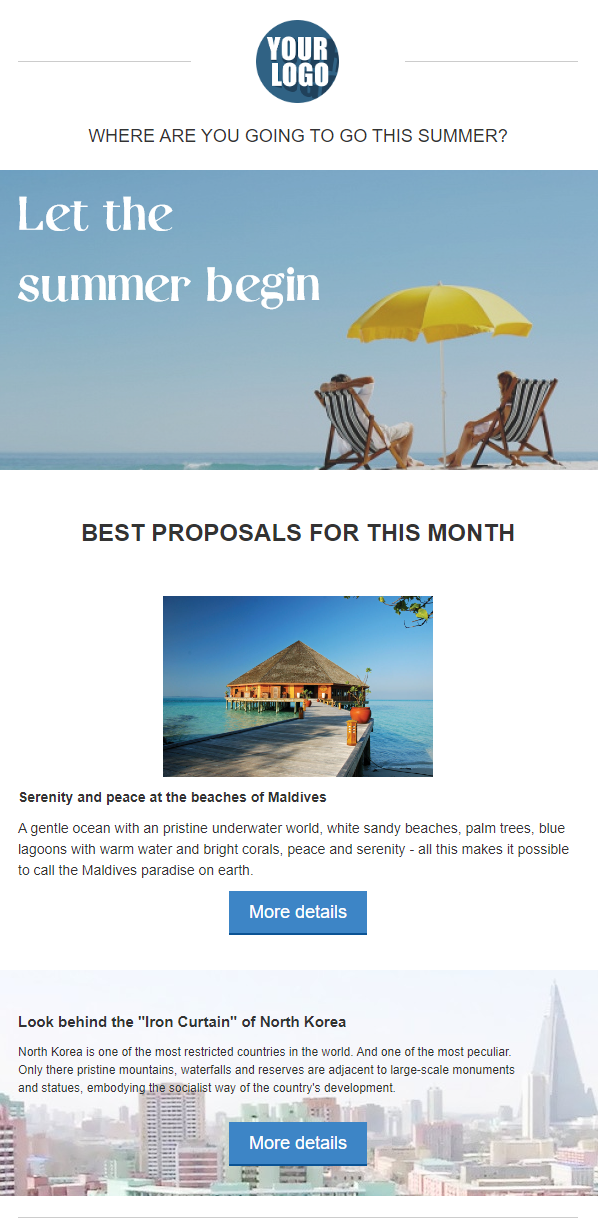
3) User with emptyPERSONAL.LOCATION parameter:
Updated 2 months ago